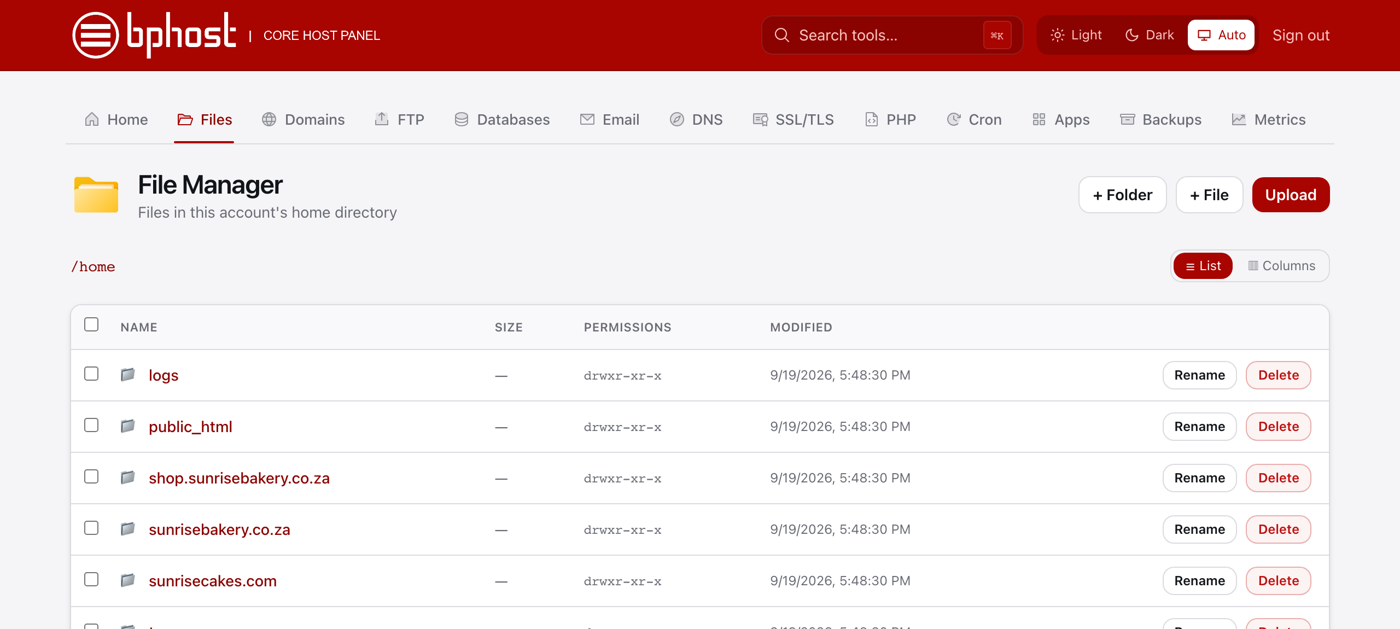
How to use the CHPanel File Manager
File Manager in CHPanel lets you upload, edit and organise your website files right from your browser — no separate FTP program needed.
Opening File Manager
- Sign in to CHPanel.
- Open the Files tab and click File Manager.
- You start in your account home. Your main website lives in public_html — that is what visitors see at yourdomain.co.za. Each addon domain and subdomain has its own folder, for example shop.yourdomain.co.za/public_html.
Uploading files
- Open public_html and click Upload (top right).
- Choose your files. Each file can be up to 256 MB through the browser; for anything bigger, use an FTP account.
- Uploading a whole site? Upload it as a single .zip, then click Extract on that row — it unpacks in place and is much faster than uploading files one by one.
Editing and organising
Text files such as HTML, PHP and CSS (up to 2 MB) have an Edit button that opens them in the built-in editor. Every row has Rename and Delete; files also have Download and Compress. Use + Folder and + File to create new items, and the checkboxes to select several rows at once.
Trouble?
Leave the logs and tmp folders alone — the server uses them. Stuck on anything? Open a support ticket and the BPHOST team will help.